Mastering the Ghost Laser Engrave File for Professional Results
Creating spooky, atmospheric décor requires more than just a creative idea; it demands precision in execution. The Ghost Laser Engrave File has become a staple for makers looking to add depth and character to wood crafts, stationery, and home accents. However, many enthusiasts rush into the engraving process without fully understanding the technical nuances of grayscale raster images. This oversight often leads to burnt edges, lack of detail, or inconsistent shading. By understanding the specific requirements of this premium PNG set, you can avoid common pitfalls and achieve sharp, professional-grade results on your first attempt.
Understanding the Difference Between Vector and Raster
One of the most frequent mistakes beginners make is treating all digital design files the same. A Ghost Laser Engrave File is not a vector SVG cut file. It is a high-resolution grayscale PNG designed specifically for raster engraving. If you attempt to use this file for cutting outlines or expect it to behave like a line-art vector, you will be disappointed. The intricate details of the ghost design rely on varying shades of gray to create a 3D illusion. When the laser interprets these shades, it adjusts power output dynamically. Using a cut-file mindset for an engrave-only asset results in lost nuance and a flat, unimpressive final product.
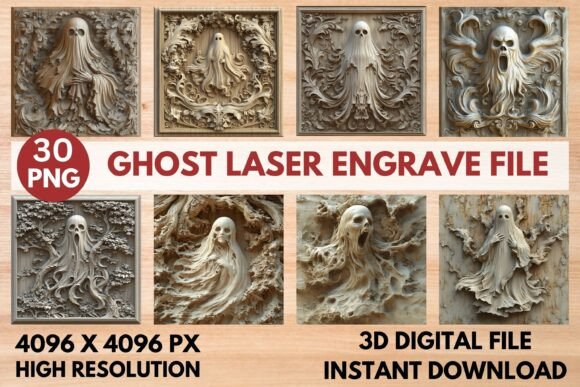
To avoid this, always verify the file type before loading it into your software. This set provides 15 coloring PNGs and 15 grayscale PNGs at 4096x4096 resolution. These dimensions are critical because they ensure the image remains crisp even when resized for larger projects like tableware or packaging. Remember, this is a non-editable asset meant for direct application, so your preparation happens in the laser software, not in a vector editor.
The Critical Role of Material Selection
Even with the perfect file, the wrong material can ruin your project. Grayscale engraving relies on contrast. The laser burns darker areas deeper and lighter areas shallower. If you choose a wood that is already very dark, such as walnut or cherry, the subtle shading of the ghost design may disappear entirely. The result is a muddy, indistinct image that lacks the intended spooky charm.
Better Approach: Opt for lighter woods like maple, birch, or basswood. These materials provide a neutral canvas that allows the varying power levels of the laser to create distinct tonal differences. For textile printing or paper goods, ensure the fabric or stock is light-colored and natural. Synthetic materials may melt rather than engrave, distorting the high-resolution details. Always test a small section of your material with the recommended settings before committing to the full design.
Optimizing Settings for Glowforge Users
Glowforge users often struggle with balancing speed and power for detailed grayscale images. A common error is using default settings intended for simple text or logos. The Ghost Laser Engrave File requires specific parameters to render the 3D effect correctly. If the speed is too low, the wood will char excessively. If the power is too high, you lose the delicate highlights that define the ghost’s form.
For optimal results, adhere to these recommended configurations:
- Speed: 1000
- Power: 90
- Mode: Grayscale Vary Power
- Quality: Max
- Lines Per Inch (LPI): 270
- Passes: 1
- Masking: No
Using "Vary Power" is essential. This setting tells the machine to modulate the laser intensity based on the pixel brightness of the PNG. Without it, the machine treats the entire image as a single solid shape, eliminating the 3D depth. Additionally, keeping passes to one prevents heat buildup, which can cause warping or unintended burning around the intricate edges of the ghost design.
Fine-Tuning for LightBurn and CO₂ Lasers
Users of LightBurn, xTool, Sculpfun, or other CO₂ laser machines have more granular control, but this flexibility can lead to over-complication. A typical mistake is applying standard dithering methods used for photographs to artistic illustrations. While Jarvis dithering is effective, it must be paired with the correct image mode. Some users mistakenly convert the grayscale PNG to black and white before importing, which destroys the gradient data needed for the 3D effect.
Ensure your image mode is set to Grayscale within LightBurn. Select the Jarvis filter for dithering if you are working with lower-power diode lasers that struggle with true grayscale variance. However, for higher-powered CO₂ machines, true grayscale processing often yields smoother transitions. Always check the preview mode to ensure the software is interpreting the transparency correctly. Since these files have a transparent background, any misalignment in the workspace can lead to engraving unwanted artifacts or missing parts of the design.
Resolution and Scaling Misconceptions
Another overlooked detail is the relationship between file resolution and physical size. The provided 4096x4096 PNGs are high-resolution, but scaling them up indefinitely is not advisable. If you stretch the image beyond its native resolution limits, pixelation becomes visible, resulting in a blocky, amateurish appearance. Conversely, shrinking the file too much can cause the laser to merge fine details, turning intricate features into solid black blobs.
Practical Advice: Calculate the dots per inch (DPI) relative to your desired output size. For most home décor items, keeping the design within a 10–12 inch square ensures the LPI settings align perfectly with the image data. If you need a larger installation, consider tiling the design or using a vector-based alternative for outlines, though this specific set is optimized for standalone engraving. Always zoom in to 100% in your software to inspect edge clarity before hitting start.
Maximizing Versatility Across Products
Many creators limit themselves to wood plaques, ignoring the versatility of this design. The Ghost Laser Engrave File is equally effective on leather journals, acrylic coasters, and even certain ceramics with proper coating. However, each material reacts differently to heat. Leather requires lower power to prevent tearing, while acrylic needs precise focus to avoid melting the edges.
When expanding into new materials, conduct a power-speed matrix test. Create a small grid on a scrap piece of your chosen material and vary the power from 10% to 90% while keeping speed constant. This empirical data helps you adjust the baseline settings provided for wood. It saves time and material costs in the long run, ensuring that every product, from fashion prints to packaging, maintains consistent quality.
Final Checks Before Engraving
Before you begin your production run, take a moment to review your setup. Ensure the lens is clean, as smudges can scatter the laser beam and blur fine details. Verify that the material is flat and securely held down to prevent focus shifts. Confirm that you have selected the correct file version—grayscale for depth, coloring for reference only. By respecting the technical specifications of the Ghost Laser Engrave File, you transform a simple digital asset into a stunning physical reality. Attention to these details separates hobbyist experiments from professional craftsmanship, ensuring your spooky creations captivate your audience every time.