Mastering the Shark Laser Engrave File for Professional Woodworking Results
Creating intricate 3D effects on wood requires more than just a powerful laser cutter; it demands precision artwork that translates depth into varying power levels. The Shark Laser Engrave File has become a popular choice for makers looking to add marine-themed decor to their portfolios. However, many creators rush into purchasing and engraving these designs without understanding the technical nuances of grayscale processing. This oversight often leads to burnt edges, lack of definition, or wasted material. By understanding how this specific file type works and avoiding common pitfalls, you can achieve gallery-quality results on your first attempt.
Understanding the Difference Between Grayscale and Vector Files
One of the most frequent misunderstandings among beginners is assuming all digital design files work the same way. When you download a Shark Laser Engrave File, you are typically receiving a raster image, specifically a PNG, rather than a vector SVG. This distinction is critical. Vector files tell the laser where to cut lines, while grayscale PNGs tell the laser how much power to apply at every single pixel. Black areas receive maximum power, creating deep burns, while white areas receive little to no power, leaving the surface untouched. Gray tones create the mid-level depths that produce the stunning 3D effect.
If you attempt to treat this file as a simple cut line, you will miss the entire point of the design. The value lies in the gradient. Many users mistakenly try to convert these high-resolution PNGs into vectors using automatic tracing software. This process destroys the subtle shading required for the 3D illusion, resulting in a flat, posterized image that lacks realism. To preserve the integrity of the shark’s texture and depth, always use the provided PNG files directly in your laser software.
Common Mistakes That Ruin Engraving Quality
Even with the correct file format, several operational errors can compromise your final product. Recognizing these issues before you start your machine can save you both time and expensive hardwood.
- Ignoring Material Color: Grayscale engraving relies on contrast. Using dark woods like walnut or stained plywood can make the shaded areas invisible because the laser cannot burn darker than the natural wood color. For the best results with a shark design, stick to lighter woods such as maple, birch, or basswood. The natural pale tone provides the necessary canvas for the gray gradients to show up clearly.
- Incorrect Dithering Settings: Laser software interprets images differently. If you do not select the appropriate dithering algorithm, the smooth gradients of the shark’s skin may appear as noisy dots or harsh bands. For example, LightBurn users should utilize the Jarvis filter for smoother transitions, while Glowforge users need to ensure "Grayscale Vary Power" is selected. Failing to adjust these settings results in a grainy appearance rather than a photorealistic finish.
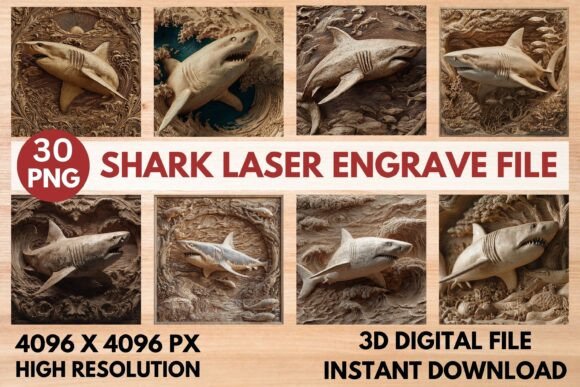
- Overlooking Resolution Requirements: A low-resolution image will pixelate when enlarged. The premium Shark Laser Engrave File typically comes in 4096x4096 pixels. If you resize it beyond its intended dimensions without checking the DPI (dots per inch), the edges of the fins and teeth will look jagged. Always check the physical size calculation in your software to ensure the pixel density remains high enough for crisp details.
Optimizing Machine Settings for Depth and Clarity
Every laser cutter behaves differently, but there are universal principles for handling complex grayscale images. The goal is to achieve depth without charring the wood excessively. High power combined with slow speed might seem logical for deep engraving, but it often leads to excessive smoke and resin buildup, which blurs the details.
For machines like the Glowforge, a recommended starting point is a speed of 1000 with power set to 90, using the "Grayscale Vary Power" mode. Setting the LPI (lines per inch) to 270 ensures that the laser head moves densely enough to blend the shades smoothly. For diode lasers such as xTool or Sculpfun, you may need to perform multiple passes at lower power to build up depth gradually. This method prevents burning and allows for better control over the tonal range. Always test these settings on a scrap piece of the exact same wood batch, as moisture content and grain direction can significantly alter the outcome.
Choosing the Right Variation for Your Project
A comprehensive pack usually includes both coloring and grayscale versions. It is essential to know which one suits your intent. The grayscale PNG is designed for direct 3D engraving where the laser creates the shadows. The coloring PNG, however, is intended for projects where you plan to hand-paint or stain the engraved area afterward. If you intend to leave the wood natural, the coloring file will result in a flat, uninteresting engrave because it lacks the power-mapping data needed for depth.
Additionally, consider the end-use of your item. If you are creating a wall hanging, a larger scale with deeper engraving works well. For smaller items like coasters or jewelry boxes, you may need to reduce the complexity or size to prevent the details from merging together. The transparent background included in these files allows you to place the shark over other elements, but ensure that any underlying layers do not interfere with the laser’s ability to read the grayscale values.
Final Checks Before You Engrave
Before hitting the start button, take a moment to review your setup. Ensure your lens is clean, as any residue can scatter the beam and soften the fine details of the shark’s gills and eyes. Check your focus height meticulously; grayscale engraving is less forgiving of focus errors than simple cutting. A slight misfocus can turn sharp gradients into blurry smudges.
Remember that this is a digital product, meaning you have the flexibility to experiment. Do not be discouraged if your first attempt is not perfect. Adjust your power settings by small increments, perhaps 5% at a time, and observe how the wood reacts. Keep notes on what works for your specific machine and material combination. This iterative process is key to mastering laser engraving.
By respecting the technical requirements of the Shark Laser Engrave File and applying these corrective measures, you elevate your craft from amateur hobbyist to professional creator. The difference between a good project and a great one often lies in these small, overlooked details. Take the time to prepare, choose the right materials, and tune your machine, and you will consistently produce stunning, three-dimensional shark art that captivates viewers and clients alike.